How to share an IFC model with someone who doesn’t use BIM software
Quick answer: You can share an IFC model with someone who does not use BIM software by sending the IFC file together with a simple way to open it — for example a browser-based viewer. If the recipient needs more context, you can also include BCF issues, prepared views or a packaged review workspace. The best method depends on what you expect the person to do with the model.
Sending someone an IFC file is easy.
Making sure they can actually use it is a different problem.
A client, contractor or consultant may not have Revit, Archicad, Tekla or another BIM application installed. They may not have access to your Common Data Environment either. In some cases, they may be joining the project from a personal laptop, a site computer or even a phone.
That does not mean they need the model converted into a stack of screenshots.
IFC was created as an open way to exchange BIM information between different software environments. The recipient does not need the application that created the original model. They only need a tool that can read the IFC and a clear idea of what they are supposed to review.
The second part is often more important than the first.
Start with one question: what does the recipient need to do?
Before choosing how to share the model, decide what you expect the other person to do with it.
Do they simply need to understand the design?
Do they need to measure something?
Do they need to inspect object properties?
Do they need to review a specific issue?
Or do they need enough freedom to explore the project independently before a coordination meeting?
Those are different tasks, and they do not all require the same type of handover.
A useful rule is:
Share as much model context as the task needs — but no more complexity than the recipient needs.
Option 1: send the IFC file itself
The simplest approach is often still the right one.
Send the .ifc file and let the recipient open it in an IFC viewer.
Because IFC is an open, vendor-neutral standard, the person receiving the file does not need the authoring software used to create it. An IFC exported from one application can be opened in many other tools that support the standard.
This works well when the recipient needs to:
- navigate through the model;
- inspect geometry;
- select objects and read their properties;
- take basic measurements;
- understand how parts of the building relate to one another.
The main thing to avoid is sending the file with no instructions at all.
For someone who does not work with BIM every day, an attachment called Building_Model_IFC4.ifc may not be self-explanatory. A short note such as “Open this in an IFC viewer and check the plant room on Level 02” can make the difference between useful model access and a file that is never opened.
Option 2: use a browser-based IFC viewer
If the recipient does not have BIM software installed, a browser-based viewer can remove another barrier.
Instead of asking someone to find, download and learn a desktop application, the workflow can be much simpler:
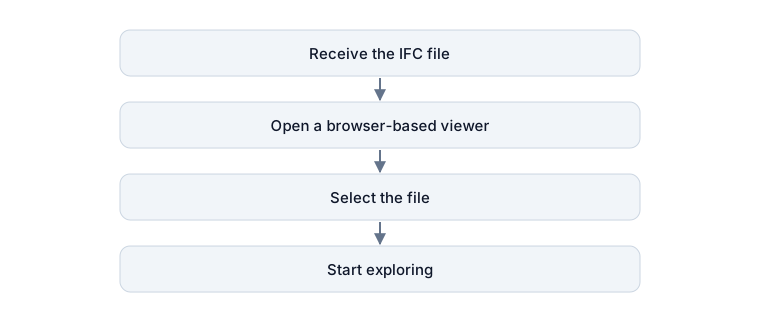
This can be especially useful for occasional reviewers: clients, site teams, external consultants or people who only need model access for one meeting or one decision.
Not every browser viewer works in the same way. Some upload the model to a cloud service, some require an account, and others process the file locally on the user’s device.
If the project contains confidential information, it is worth checking where the file is processed before using any online tool.
When a screenshot or PDF may be enough
Not every question needs an interactive model.
If you only need someone to confirm one dimension, approve one layout or comment on one clearly defined location, a screenshot or PDF may be the fastest way to communicate.
That is not a step backwards from BIM. It is simply choosing the smallest useful deliverable for the task.
The limitation appears when the recipient needs to investigate beyond the view you prepared.
A screenshot shows one camera position. A PDF shows what was exported. Neither lets the person rotate the model, inspect a nearby element or check an object property that was not included in the document.
So a simple distinction is helpful:
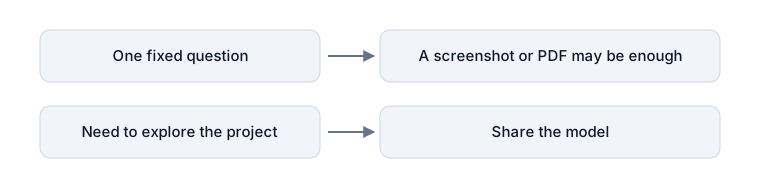
If a PDF is enough in your case, How to export BCF to PDF walks through turning issues, their viewpoints and their comments into a document that anyone can open.
When the recipient needs to understand an issue, add BCF
Sometimes the model alone is not the problem.
Imagine sending an MEP model and a structural model to a consultant with the message:
“Please check the opening near the plant room.”
The models may contain everything needed to investigate the problem, but the recipient still has to find the correct location and work out what the discussion is about.
BCF can carry that missing context.
A BCF issue can include a topic, description, comments, status and a viewpoint that brings the reviewer back to the relevant location in the model. Instead of searching through the project from scratch, the recipient can start where the problem actually is.
In simple terms:
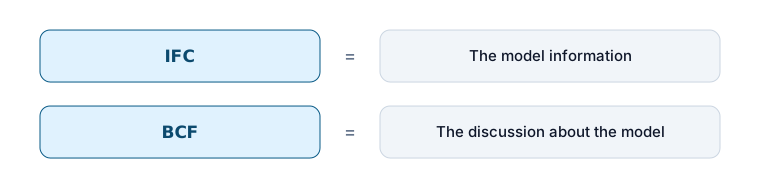
They are often more useful together than either is alone.
Read IFC vs BCF: what’s the difference? for a fuller explanation.
Share the context, not just the model
Giving someone freedom to explore does not mean they should always start from an empty 3D view.
If the recipient is unfamiliar with BIM software, a little preparation can make the project much easier to understand. You might prepare a view of the area being discussed, a section through a congested zone, a saved selection of relevant elements, or a set of BCF issues ready to review.
This gives the recipient a clear starting point while still allowing them to explore the model independently.
When that review context includes several IFC models, BCF issues, prepared views and saved selections, sending everything as separate files can quickly become inconvenient. The recipient may also have to recreate part of the setup before they can begin.
This is where a packaged review workspace becomes useful.
A .bimlyte package can contain the relevant IFC and BCF files together with prepared views, selections and other saved project context. It can then be shared as a single file and opened directly in Bimlyte through the browser, without specialist BIM authoring software or an account.
The package does not replace the source models or the project CDE. It is a portable review copy designed to give someone the right project context for a specific review, meeting or discussion.
Instead of choosing between a static screenshot and an unexplained model, you can give the recipient a prepared starting point — and still leave them free to explore further.
What should you send?
Imagine an architect wants an investor to review a revised entrance area before a meeting.
Sending the native authoring model would create unnecessary complexity. A few screenshots may show the change clearly, but they do not let the investor look around the space, inspect nearby elements or explore the design independently.
A more useful handover could be:
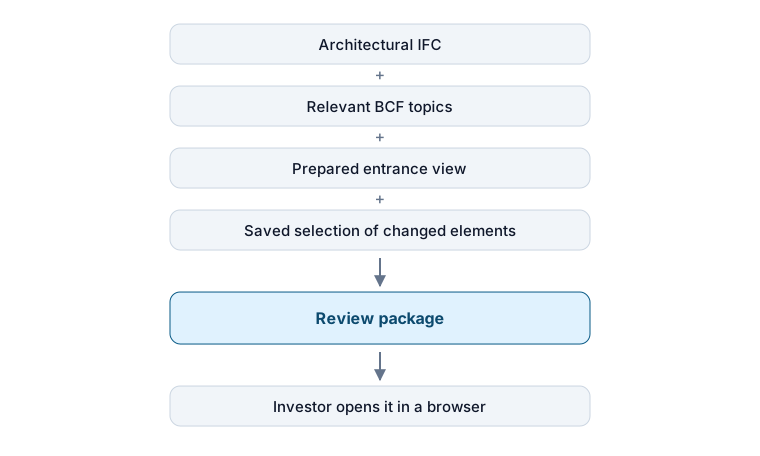
The investor can start from the prepared view, inspect the changed area and arrive at the meeting already familiar with the context.
The same principle applies to any model handover: the format should match what the recipient actually needs to do.
| What the recipient needs | A practical option |
|---|---|
| See one fixed view | Screenshot or PDF |
| Explore the model | IFC |
| Review a specific issue | IFC + BCF |
| Review several disciplines together | Federated IFC models |
| Explore a prepared project context | Packaged review workspace |
There is no single correct way to share a BIM model.
The best handover is the one that gives the recipient enough context to understand the information without asking them to install, learn or access more software than the task requires.
For prepared reviews, Bimlyte can package IFC models, BCF issues, saved views and selections into a single .bimlyte file that can be opened directly in the browser.