How to open a BCF file
Quick answer: Open a BCF file with any BCF-capable tool — a coordination viewer such as BIMcollab Zoom or Solibri, your BIM authoring software, or a browser-based tool such as Bimlyte. The file carries topics, comments, viewpoints, snapshots and references to model components, but not the model itself. So you can always read the issues on their own, and you need the matching IFC or native model loaded as well before a saved viewpoint can rebuild the issue in 3D.
A BCF file is a set of model-based issues — the conversation about a project, exported so it can travel between different BIM applications. Which of the four routes below suits you depends on whether you want to read those issues, answer them, fix the model, or work out why the file is misbehaving.
Four ways to open a BCF file
1. A BCF viewer or BIM coordination tool
The most direct route when your job is to review issues rather than change the design.
Tools with BCF import in this category include:
- BIMcollab Zoom (KUBUS) — imports BCF and shows issues alongside the model,
- Solibri Office and the free Solibri Anywhere — BCF-based issue workflows and presentations,
- Revizto — issue tracking with BCF import and export,
- Trimble Connect, Dalux, Catenda Hub and Autodesk BIM Collaborate — project platforms with BCF exchange,
- BIM Vision (Datacomp) — a free desktop IFC viewer with BCF support through a plugin.
Support is not uniform. Check which BCF versions a tool reads, and whether it restores the full viewpoint or only the camera.
Choose this when you work through issues regularly and want them side by side with the model. Expect an installation and, for most of these, a licence.
2. Your BIM authoring software
If the next step is to correct the model, open the BCF where the model is being edited.
- Archicad imports and exports BCF natively through its Issue Organizer.
- Revit works with BCF through add-ins such as BIMcollab BCF Manager, the Revizto plugin, or the open-source BCFier.
- Navisworks, Tekla Structures, Allplan and Vectorworks have comparable BCF add-ins or platform connections.
- Bonsai (the IfcOpenShell add-on for Blender, formerly BlenderBIM) supports BCF in an open-source stack.
The BCF does not need to contain the native model. The authoring application already has the objects open and uses the component references stored in the BCF to select or highlight them.
Choose this when you are the person who has to change the model. Usually needs an add-in, and it is heavy going if you only want to read a few issues.
3. A browser-based BCF tool
Useful when you want to look inside a file without installing a coordination suite — and when the person who needs to read the issues is not a daily BIM user.
- Bimlyte opens BCF 2.1 and BCF 3.0 in the browser and works with IFC models alongside them.
- BIMcollab’s web environment imports BCF into a project for issue management.
- Several project platforms (Trimble Connect, Catenda Hub, Dalux) also accept a BCF upload through their web interface.
With Bimlyte, project files are processed locally on your device rather than uploaded to a server for processing — worth knowing if the model is confidential. Our BCF editor page covers what you can change once the file is open.
Choose this when you need to see the issues now, on any machine, without installing anything. Check which BCF versions the tool supports before you rely on it.
4. A ZIP utility and a text editor
Not a review workflow — a diagnostic one. Use it when you need to know whether a viewpoint exists at all, which component GUIDs were exported, or why another application rejects the file.
- 7-Zip, WinRAR or the built-in Windows/macOS archive tools to extract the package,
- VS Code or Notepad++ to read the XML files inside.
Rename the file from .bcf to .zip first — most archive tools will not touch an extension they do not recognise. Inside, you get one folder per issue:
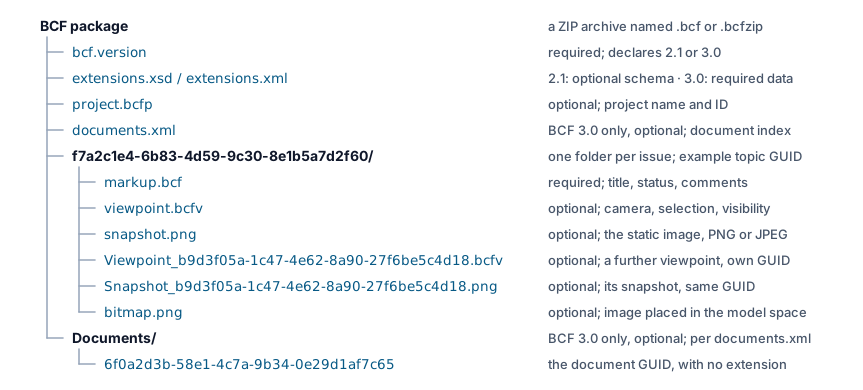
Choose this when a tool has rejected the file and you need to see what is actually inside it. This is diagnosis, not review.
Sending the issues to someone with no BIM tools at all? None of the four routes helps them — export the issues to PDF or to Excel instead.
Opening a BCF, step by step
Interfaces differ, but a sound review sequence is nearly always the same:
- Open or import the BCF file.
- Select a topic.
- Read the title, description, status, assignment and comments.
- Look at the snapshot for quick visual orientation.
- Activate the saved viewpoint.
- If there is no 3D context, load or map the related IFC or native model.
- Check whether the expected elements are selected, visible or isolated.
- If the view still looks wrong, verify the model revision before concluding that the BCF is broken.
If you only need to know what was reported, steps 1–4 are enough. If you need to investigate the issue against the design, you want the model too.
Received an IFC alongside the BCF but have no authoring licence? See How to open an IFC file without Revit.
What you get once it opens
Whichever route you took, a BCF gives you a list of issues. Open one and there are three things on screen:
- The issue itself — title, description, status, who it is assigned to, and the comment thread. This is the part everyone came for.
- A snapshot — a picture of the problem, taken when the issue was raised. It always shows up, because it is just an image sitting in the file.
- A saved viewpoint — a button that swings your 3D view back to exactly where the author was standing. This one only does something if a model is loaded.
That last difference explains most of the confusion around BCF. Seeing the snapshot does not mean the viewpoint will work: the picture is finished, the viewpoint is an instruction that still has to be carried out on a model.
Do you also need the model?
Often not. It depends on what you were asked to do.
You do not need the model to read what was reported, look at the snapshot, check the status and priority, see who is responsible, add a comment, or answer the issue. For a great many people — clients, site teams, subcontractors, anyone copied into a coordination round — that is the whole job, and a BCF on its own is enough.
You do need the model as soon as you want to look at the problem rather than a picture of it: turn around it, see what else is nearby, check a dimension, or actually fix it.
The reason is simple. A BCF does not contain the building. It contains the conversation about the building, plus a note saying this issue is about those elements over there. Load the matching IFC next to it and the note has something to point at; without it, you have the conversation and nothing else. IFC vs BCF covers that division of labour.
Two practical consequences:
- Ask for the model together with the BCF whenever the recipient is expected to investigate rather than just read.
- Ask for the right one. A viewpoint was saved against a particular version of a model, and a newer version may have moved, renamed or deleted the very elements the issue is about.
What if the BCF will not open?
If none of the four routes above gets you anywhere, the useful move is to stop asking why the file is broken and start asking how far it got. A BCF can fail at five separate points — the ZIP package, the topic data, the model, the component references, and the viewpoint visualisation — and each has its own symptom and its own fix.
Most reported failures are not damaged files at all. They are a .bcfzip a tool refuses to accept, an archive re-zipped one folder too deep, a BCF 3.0 file in a BCF 2.1 tool, or a viewpoint pointing at GUIDs that the current model revision no longer contains.
BCF file not opening? Common BCF problems and how to fix them walks the five layers in order, with a symptom table and the checks that resolve each one.