BCF file not opening? Common BCF problems and how to fix them
Quick answer: Most “broken BCF” reports are not broken files. A BCF can fail at five separate layers — the ZIP package, the topic data, the model, the component references, and the viewpoint visualisation — and each one has its own symptom and its own fix. Check them in that order. If the file opens as a ZIP and the topics are readable, the file is fine and the problem is on the model side: the wrong revision is loaded, the referenced IFC GUIDs no longer exist, or the receiving tool interprets part of the viewpoint differently.
First, find out which layer failed
The single most useful habit in BCF troubleshooting is to stop asking “why is the BCF broken?” and start asking “how far did it get?”
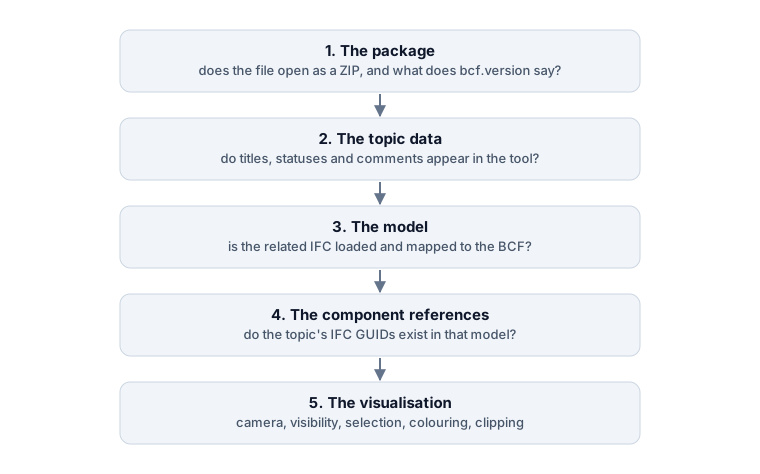
Work down the ladder. The first layer that misbehaves is the real problem; everything below it is a consequence.
Layer 1: the file will not open at all
The application rejects the BCF, reports an invalid file, or simply does nothing.
Check the extension. BCF 2.1 introduced .bcf; BCF 1.0 and 2.0 exchanges usually used .bcfzip. Some tools accept only one of them. Renaming the file from one to the other costs nothing and often resolves it outright — the content is identical either way.
Check that it really is a ZIP. A BCF package is an ordinary ZIP archive wearing a different extension, so you can look inside it with nothing more than 7-Zip, WinRAR or the archive tool built into Windows and macOS.
Rename the file first. Change issues.bcf to issues.zip by hand — most archive tools ignore an extension they do not recognise, so without the rename nothing will open. (Windows hides file extensions by default; turn them on under View → Show → File name extensions in Explorer, otherwise you are renaming issues.bcf to issues.zip.bcf.)
If the archive still will not open after the rename, the file was truncated in transit or mangled by an email gateway. Ask for it again, zipped inside another archive if the mail system keeps interfering.
If it does open, you should see something like this:
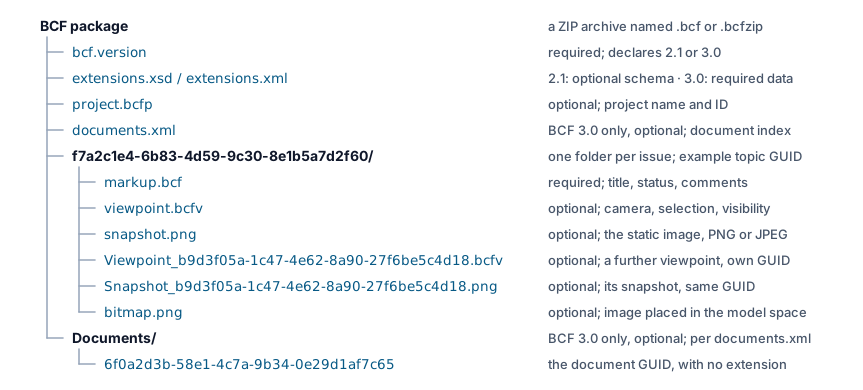
Most of that is optional, which is worth knowing before you conclude anything is missing. Only bcf.version and one markup.bcf per topic are required in both versions; a viewpoint, a snapshot and any bitmaps are things an exporter may simply not write. Two entries are version-specific: BCF 2.1 declared project values — statuses, types, priorities — in an XSD schema called extensions.xsd, referenced from the optional project.bcfp, while BCF 3.0 stores the same values as plain data in extensions.xml and requires that file in every package. So a 2.1 file may legitimately have neither, while a 3.0 file always has extensions.xml and never extensions.xsd. documents.xml and the Documents folder it indexes — attachments carried inside the package, each stored under its document GUID with no file extension, its real name kept in documents.xml — exist only in BCF 3.0, and both are optional.
Check the version. Inside the archive, bcf.version declares the schema — 2.1 or 3.0. The filename never tells you this. If the file is 3.0 and your tool predates it, that is your answer; ask the sender to export 2.1, or convert the file. Our guide on converting between BCF 2.1 and 3.0 shows one way to do that, and BCF 2.1 vs BCF 3.0 explains what actually changes.
Check the structure. A valid package has bcf.version at the top level and one folder per topic containing at least markup.bcf. A file that was re-zipped by hand often ends up with everything one folder deeper — a very common way to produce an archive that no BCF tool will read.
Layer 2: the topics open, but nothing else does
The list of issues appears, titles and comments are readable, and that is where it stops. This is normal, not a failure — a BCF carries no geometry. If you also need the model, keep going.
Layer 3: there is no 3D model
The BCF contains issue data and references, not the building. Load the corresponding IFC or native model and, if the tool requires it, associate it with the BCF explicitly.
Some applications do this matching automatically using the file information in the BCF header; others ask you which model belongs to which topic. The BCF 3.0 documentation is explicit that IFC files carry no unique file identifier that makes the mapping foolproof, so manual association is a legitimate part of the workflow rather than a workaround.
If you have the IFC but no software to open it, How to open an IFC file without Revit covers the options.
Layer 4: the model is loaded, but the components do not resolve
Symptom: the camera lands roughly in the right area, but nothing is selected — or most of the model vanishes when the viewpoint activates.
The viewpoint referenced components by IFC GUID and the receiving tool could not find them. Which is usually not a bug. It is drift:
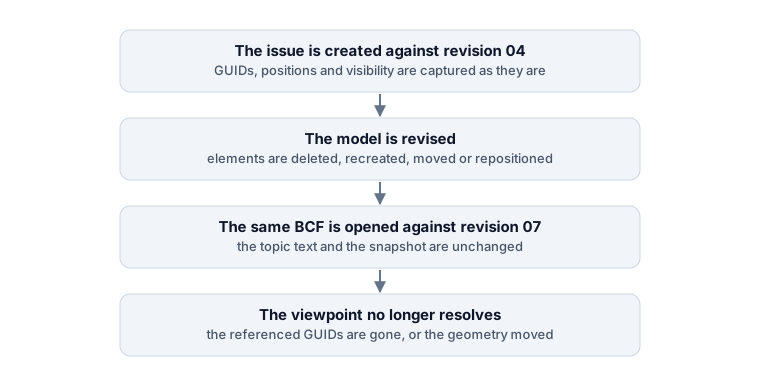
Between the two revisions, any of the following may have happened:
- the wall was deleted and remodelled, and now has a new GUID,
- the geometry moved,
- the building or discipline model was repositioned,
- the decomposition changed, so the referenced element is now several elements,
- new elements now block the saved camera,
- the clipping plane no longer cuts where it was meant to.
The first test is always the same: open the BCF against the revision the issue was created on. If it works there, nothing is wrong with the BCF, and the issue simply needs to be re-cut against the current model.
If the GUIDs do not match even on the original revision, compare them directly — extract the archive and read the Components block in the .bcfv file, then look for those GUIDs in the IFC. That distinguishes “the model changed” from “the exporting tool wrote references the importing tool cannot use”.
Layer 5: the viewpoint applies, but the view is wrong
Everything resolves and the result still does not look like the snapshot. Now you are debugging the visualisation itself.
Half the model is missing. The viewpoint may set DefaultVisibility to false and list exceptions — meaning “hide everything, then show these”. If those exceptions cannot be resolved, you get an almost empty scene. Check the Visibility block and whether the listed GUIDs exist.
The wrong things are visible or hidden. ViewSetupHints controls whether spaces, space boundaries and openings are shown, and tools interpret these hints with varying enthusiasm. Decomposed elements are another common cause: hiding a parent does not always hide its children.
The section cuts in the wrong place. BCF clipping planes are defined in model coordinates. If the model was repositioned — a different project base point, a survey-point shift, a different georeferencing — the plane stays put while the building moves out from under it. Verify the model positioning first, then read the ClippingPlane location and direction in the .bcfv.
The framing is off in one tool but right in another. This one is a genuine specification difference. In BCF 2.1 the perspective camera has a FieldOfView and no AspectRatio, and the documentation describes that field of view as horizontal. In BCF 3.0 the camera carries an AspectRatio and FieldOfView is defined as the vertical field of view. The BCF 3.0 implementation notes acknowledge that earlier versions were read differently by different implementers and give rules for legacy viewpoints. So an old viewpoint framed differently across two applications is often a version-interpretation issue, not a damaged file.
Symptom table
| Symptom | Likely layer | What to check |
|---|---|---|
| The application rejects the file | 1 | Extension, whether it opens as ZIP, bcf.version, and whether the archive was re-zipped one level too deep |
| Topics open, no 3D anywhere | 2–3 | Load the related model and map it to the BCF if the tool asks |
| Snapshot visible, activating the viewpoint does nothing | 1 or 3 | Does the .bcfv referenced in markup.bcf exist? Then check the model mapping |
| Camera is right, nothing is selected | 4 | Compare IFC GUIDs; confirm you are on the revision the issue was created against |
| Most of the model disappears | 4–5 | DefaultVisibility, visibility exceptions, clipping planes, and whether the referenced GUIDs resolve |
| Wrong elements shown or hidden | 5 | ViewSetupHints, decomposed elements, model revision |
| The section cuts in the wrong place | 5 | Model positioning and the ClippingPlane location and direction |
| Framed differently in another tool | 5 | BCF version, and whether the file was written as 2.1 or 3.0 |
| Viewpoints open very slowly | 5 | Size of the component lists; buildingSMART flags roughly 1000 components as the point where clients should warn users |
| The same file behaves differently in two applications | any | Compare BCF version support, then test camera, visibility, colouring, clipping and matching separately |
When one BCF behaves differently in two tools
This is worth isolating rather than guessing about, because “it works in Solibri but not in Revit” describes a dozen different underlying causes.
Test one variable at a time against the same model:
- Does the camera land in the same place?
- Are the same components selected?
- Is the same set visible?
- Is the colouring applied?
- Are the clipping planes applied?
Whichever one diverges tells you which part of the visualisation the second tool implements differently — and whether the fix is a different export version, a different viewpoint, or an accepted limitation you note and move past.
Slow BCF files
If opening viewpoints crawls, look at how many components each one references. A viewpoint that stores selection, colouring or visibility for tens of thousands of elements has to be resolved element by element against the loaded model.
buildingSMART recommends against very large component lists and identifies roughly 1000 components as a threshold at which clients should warn the user. If your exports routinely exceed that, the usual cause is a “hide everything except this” workflow that writes an exception for every remaining object. Isolating fewer elements before saving the viewpoint fixes both the file size and the speed.
How to author BCF issues that still work in six months
Most of the failures above are created at export time, not at import time. A few habits prevent nearly all of them:
- Name the model revision in the topic description. One line — “created against ARC_IFC4_rev04” — turns an unreproducible viewpoint into a five-second check.
- Export the version your recipient can read, not the newest one your tool offers.
- Keep component lists small. Isolate what the issue is about rather than saving a viewpoint that hides the other 40,000 objects individually.
- Always include a snapshot. It is the only part that survives every model change, and it is what lets the recipient understand the issue even when the viewpoint fails.
- Write a description that stands on its own. If the topic text only makes sense with the viewpoint active, the issue becomes unreadable the moment the model moves on.
- Send the BCF and the model together when the recipient is outside the project platform, and say which is which.
- Re-cut, do not patch. If the model has moved on, a new viewpoint against the current revision is worth more than an argument about whose tool broke the old one.
For recipients with no BIM software at all, exporting the issues to PDF or to Excel sidesteps the whole reconstruction problem — at the cost of the 3D context.