How to install Bimlyte safely
Bimlyte is a web app. You can use it in an ordinary browser tab with nothing to install at all. Installing it is optional, free and takes a few seconds. You get:
- its own window and an icon next to your other apps;
- offline use — Bimlyte opens even without an internet connection;
- automatic updates.
How do you install a web app?
Bimlyte is a progressive web app (PWA). Your browser installs it for you, directly from the official website. You do not download or unpack anything, and you do not need administrator rights.
Because the app always comes from app.bimlyte.com, it also keeps itself up to date: a new version is picked up the next time you open Bimlyte.
Install Bimlyte on a computer
This works in Google Chrome and Microsoft Edge on Windows, macOS and Linux.
- Open app.bimlyte.com in Chrome or Edge.
- Click Install app. You will find it on the start page and at the bottom of the left sidebar.
- If your browser asks you to confirm, confirm the installation.
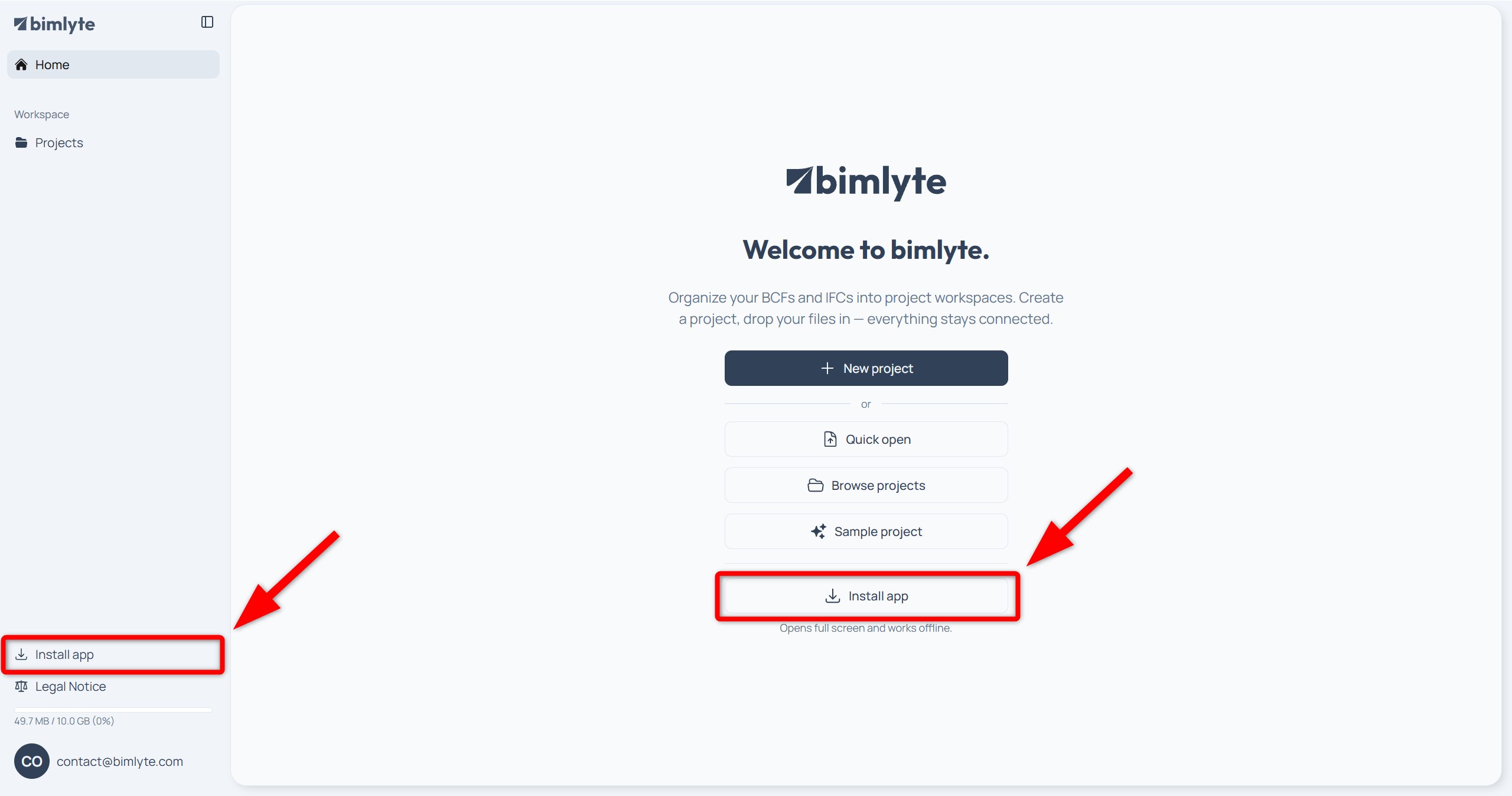
That’s it. Bimlyte opens in its own window. From now on you can start it like any other app — from the Start menu on Windows, or through Spotlight on a Mac.
Using Safari on a Mac? Open app.bimlyte.com, click the Share button in the toolbar and choose Add to Dock. Then click Add. Bimlyte appears in your Dock.
No Install app button? Then Bimlyte is already installed, or your browser cannot install web apps this way. Open it in Chrome or Edge instead.
Install Bimlyte on a phone or tablet
Android
- Open app.bimlyte.com in Chrome.
- Tap Install app.
- If your browser asks you to confirm, confirm the installation.
iPhone
- Open app.bimlyte.com in Safari.
- Tap the ⋯ button next to the address bar, then tap Share. (If your tabs are at the top or bottom of the screen, tap the Share button directly.)
- Scroll down and tap Add to Home Screen. If it is not in the list, tap Edit Actions at the very bottom and add it.
- Make sure Open as Web App is turned on, then tap Add.
iPad
- Open app.bimlyte.com in Safari.
- Tap the Share button, then View More, then Add to Home Screen.
- Make sure Open as Web App is turned on, then tap Add.
The Bimlyte icon then appears on your home screen.
Downloaded Bimlyte from another site?
Bimlyte has never been released as a downloadable file. Any “Bimlyte” ZIP or installer from a third-party website is not an official release. If you have one:
- Do not open it or run anything inside it.
- Delete the downloaded files.
- If you have already run something from it, scan your computer with your antivirus software.
Then install Bimlyte the official way, as shown above. Bimlyte has only two official addresses: app.bimlyte.com for the app and www.bimlyte.com for this website.
Found a site offering Bimlyte for download? Please let us know at contact@bimlyte.com, so we can look into it.