How to check an IFC model before delivery
Quick answer: Open the exported IFC in an independent viewer and check five things before sending it: the correct file was exported, the geometry looks complete, the model structure makes sense, the required information is present and—when other disciplines are involved—the models align correctly. Always review the final IFC file, not only the original authoring model.
A successful export does not automatically mean a correct IFC file.
IFC is an exchange format, so the model is translated from the original software into a structure that other applications can read. During that process, geometry may be omitted, objects may receive the wrong IFC class and properties may not be exported as expected.
You do not need an advanced BIM setup to catch most of these problems. The following checks can be completed in any capable IFC viewer and work equally well for a project delivery, an internal review or a university submission.
1. Open the actual IFC file
Start with the exact .ifc file you plan to deliver—not the source model in Revit, Archicad, Tekla or another authoring tool.
Whenever possible, use an independent IFC viewer. Opening the file in a different application confirms that the export can be read outside the software that created it.
Before going further, check:
- the file opens without errors;
- it is the correct project and discipline;
- the file name is clear;
- the required IFC version was used.
Common versions include IFC2x3, IFC4 and IFC4.3. The newest version is not automatically the right one. Use the version required by the project, client, university or receiving software.
If the file does not open, try a second viewer. If several independent viewers fail, return to the export settings and create a new file.
2. Review the model as a whole
Start by looking at the entire model from a distance.
Ask a few simple questions:
- Does the overall shape match the source model?
- Are the scale and proportions realistic?
- Is the model oriented as expected?
- Are all major parts in the correct positions relative to one another?
- Are there any stray objects far away from the main model?
This quick overview can reveal incorrect units, accidental offsets, misplaced elements or an incomplete export before you begin a more detailed review.
Measure one known dimension, such as a wall length or floor height, if you are unsure about the scale.
3. Check the geometry with a few focused views
Do not inspect every element one by one. Instead, review several representative areas and use section planes to look inside the model.
Check the parts most likely to reveal export problems:
- walls, slabs and roofs;
- doors and windows;
- stairs, railings, openings and shafts;
- foundations;
- custom families or library objects;
- linked models or building services, when they are part of the export.
A section through the building can quickly reveal missing slabs, floating objects, incorrect floor positions or elements extending through several storeys.
Focus on complex areas and unusual components. If those export correctly, standard elements are more likely to be correct as well.
4. Check the model tree and key information
Geometry is only one part of an IFC model. The file should also have a clear structure and enough information for its intended use.
Open the model tree and confirm that:
- the expected site, building and storeys are present;
- storey names and elevations make sense;
- elements are assigned to reasonable storeys;
- there are no unexpected duplicate or empty levels.
An IFC model is usually organized into a spatial hierarchy. A simplified model tree may look like this:
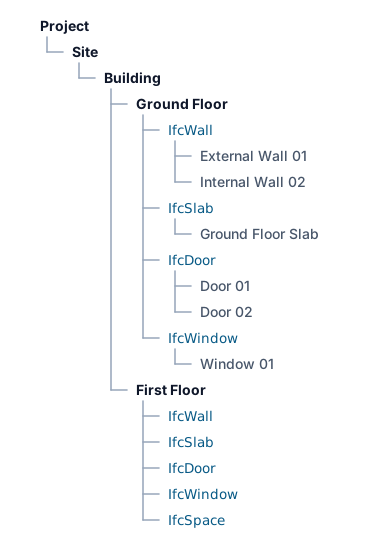
Then select a few representative objects—a wall, slab, door, window and any important project-specific component—and check:
- the IFC class;
- the object name and type;
- the storey assignment;
- the material or other required properties;
- project-specific information requested for the delivery.
A wall should normally be exported as IfcWall, a slab as IfcSlab and a door as IfcDoor.
IfcBuildingElementProxy is not always an error, especially for unusual objects. However, if many ordinary building elements are exported as generic proxies, the receiving team may have trouble filtering, checking or reusing the model.
Do not review every available property. Check only the information needed for the purpose of the delivery. A model prepared for visual review needs less data than one intended for quantities, coordination or facility management.
If rooms or spaces are required, confirm that they are present, correctly named and assigned to the right storeys.
5. Check coordination when other models are involved
This step is only necessary when the IFC will be combined with models from other disciplines.
Load the models together and compare visible reference elements, such as:
- grid intersections;
- building corners;
- structural columns;
- floor levels;
- shafts or stair cores;
- site boundaries or other recognizable geometry.
These elements should overlap in the same location.
If they do not, the models may use different origins, rotations, units or coordinate settings. Do not manually move one model just to make the view look correct. First identify which file does not follow the agreed project coordinates and correct the source workflow.
6. Check that the file is clean and usable
The model should be easy enough to open, navigate and inspect for its intended purpose.
Check whether you can:
- rotate and zoom without major delays;
- select objects and read their properties;
- hide or isolate elements;
- create a section;
- move through the model tree.
A slow or unexpectedly large file may contain:
- duplicated geometry;
- unnecessary linked models;
- temporary or test objects;
- highly detailed manufacturer components;
- objects located far from the main model.
Remove content that does not belong in the delivery and simplify excessive detail where possible. Fix the source model or export settings, then create a new IFC rather than editing the final file manually.
There is no universal correct IFC file size. Treat an unusual increase in size as a reason to investigate, not as an automatic failure.
7. Use formal validation only when needed
A visual review cannot detect every technical problem.
The free buildingSMART IFC Validation Service can check whether a file follows the formal IFC specification, including its STEP syntax, schema and normative rules.
This answers a technical question:
Is the file correctly structured according to the IFC standard?
It does not confirm that the model contains the right geometry, naming or project-specific properties. Those still need to be reviewed separately.
When a project provides an Information Delivery Specification (IDS), use it to check required classifications and properties.
For a simple internal exchange or student submission, formal validation may be optional. For a contractual delivery, follow the project requirements.
Final IFC delivery checklist
Before sending the file, confirm that:
- The final IFC opens in an independent viewer.
- The correct project, discipline, and IFC version were exported.
- The model has the expected shape, scale and orientation.
- Main elements are present and correctly positioned.
- Sections through representative areas look correct.
- Storeys are clear and elements are assigned correctly.
- Important objects use suitable IFC classes.
- The properties required for this delivery are present.
- Models align when coordination with other disciplines is required.
- Temporary, duplicated or unnecessarily detailed objects were removed.
- The file is practical to navigate and inspect.
- Formal validation or IDS checks were completed when required.
- The exact file being delivered was opened one final time.
What if you find a problem?
Correct the issue in the source model or export settings, create a new IFC and check it again.
If another person must fix the model, report the problem clearly. Include:
- what is incorrect;
- where it appears;
- what you expected to see;
- a screenshot or saved viewpoint.
BCF is useful for sharing issues, comments and viewpoints connected to an IFC model. Read IFC vs BCF: What’s the Difference? to see how the two formats work together.
An IFC model is ready for delivery when it is complete and reliable enough for the next person’s task. The required level of detail will vary, but one rule always applies:
Never deliver an IFC file that nobody has opened and reviewed.
You can open Bimlyte to review an IFC model directly in your browser without installing desktop BIM software or creating an account. The model remains on your device while you inspect it.